
When signing up using the app, the first step is to locate the app in the app store and download it onto your device. Below is an image of what our app looks like in the app store: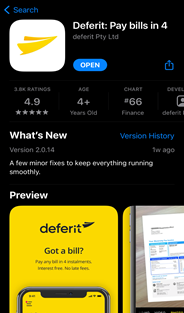
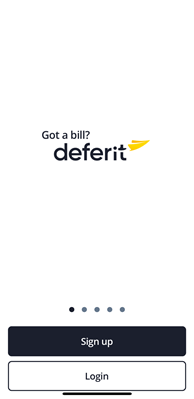
Once installed, please select the black “Sign Up” button.
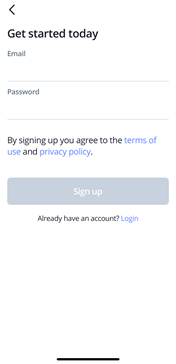
You will then need to fill out your email address and choose a password.
This will bring you to your Deferit home screen which is shown in the below image. To finish
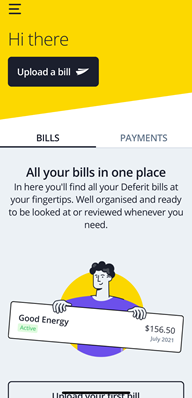
setting up your account, what you want to do is press on the black box that says “Upload Bill”.
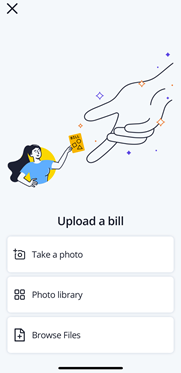
The first step of uploading your bill is to select how you would like to upload your bill, either by taking a photo, choosing an image from your photo library or choosing a PDF file.
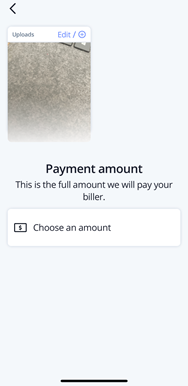
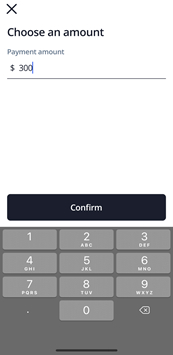
Once you have selected your bill, it will then give you a preview of the bill you have chosen and ask you to also choose an amount to pay. Please enter the amount you wish to pay by selecting “Choose an amount”.
To lock it in, please press on the black “Confirm” button.
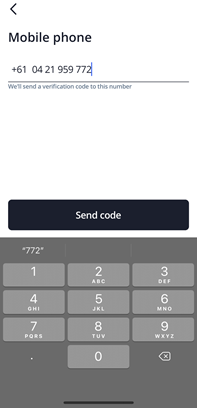
The system will then get you to enter your mobile number so we can verify and add it to your account details. Once you have entered your mobile number, please click on “Send Code” to receive your 6-digit verification code.
You will receive a text message on your device as shown below. Please enter this code to finalise the mobile verification process.
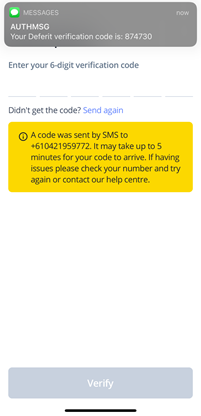
One your mobile number has been verified, it is time for the system to verify your identity. This is done by entering your personal details. The system will ask you for your full legal name, date of birth and residential address.
Once you enter in that information there will then be a pop up asking if you agree to our terms and conditions.
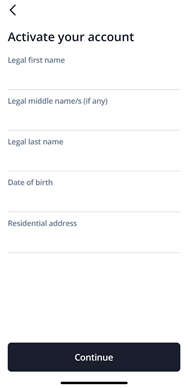
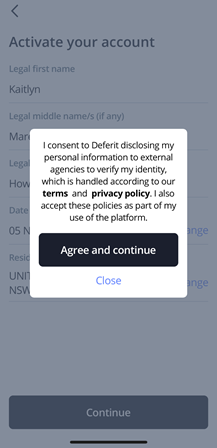
If you decide to agree to the terms and conditions, you will then be asked to enter your card details so we are able to automatically attempt the instalments from this card. The card you decide to upload must be:
- Visa debit or MasterCard
- More than 3 months away from expiry
- Have at least $0.50 on it at the time of upload
We conduct what’s known as a pre-authorisation check where we temporarily put a hold on 50c on the card and then instantly release those funds. We do this to make sure we know the card is able to be charged for payments.
Finally, you will be asked to confirm all the details for the bill, such as the bill itself, the amount to pay and the date to pay, all of which can be changed up until this point. You are also given the opportunity to add any additional information in the drop-down box at the bottom of the screen. If you are happy with your bill upload all you need to do now is press the black “Submit” button. This will send your bill into processing, once it has finalised processing you will receive an email to let you know the outcome.
You have now successfully created a Deferit account and uploaded your first bill!