
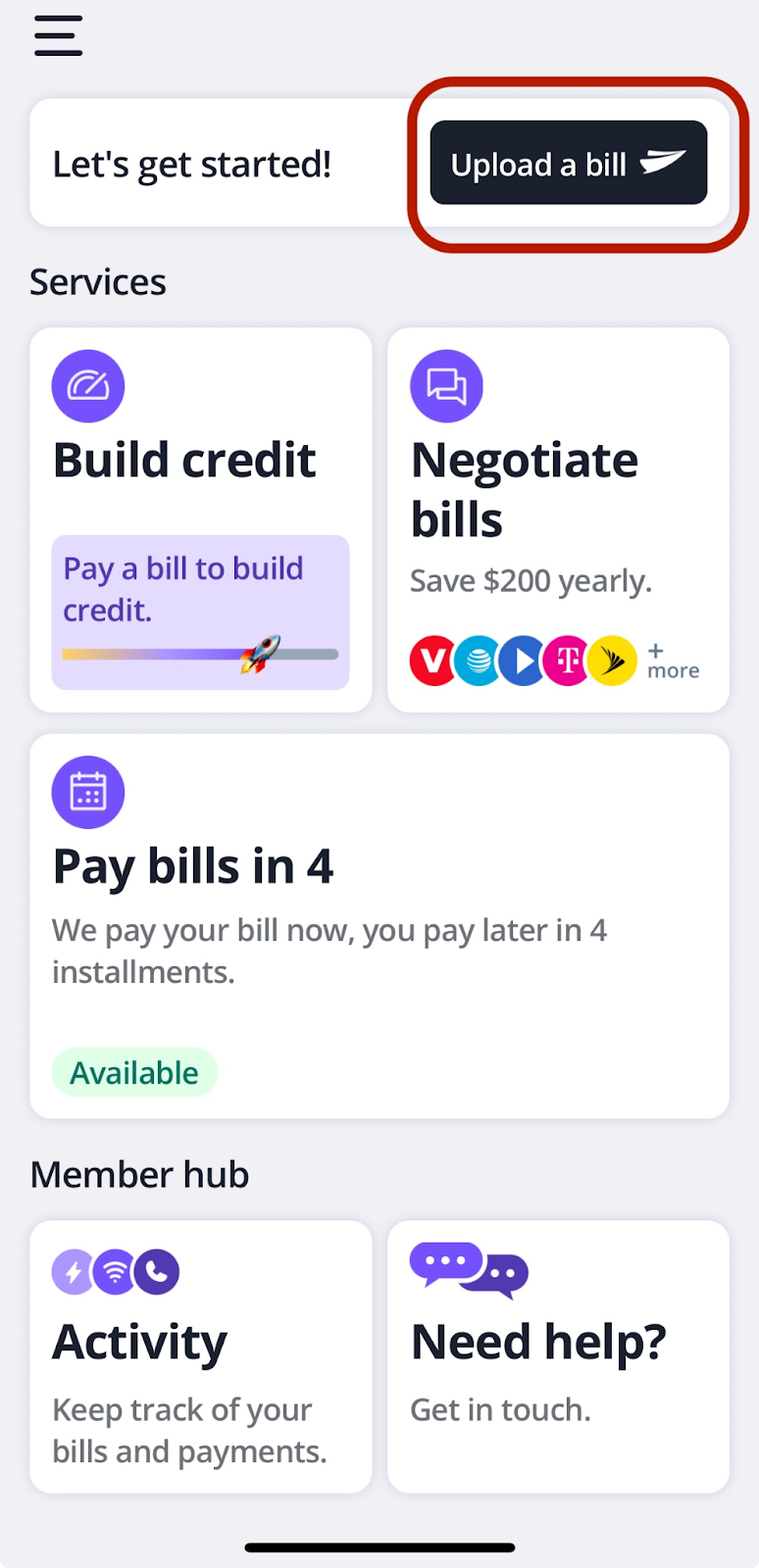
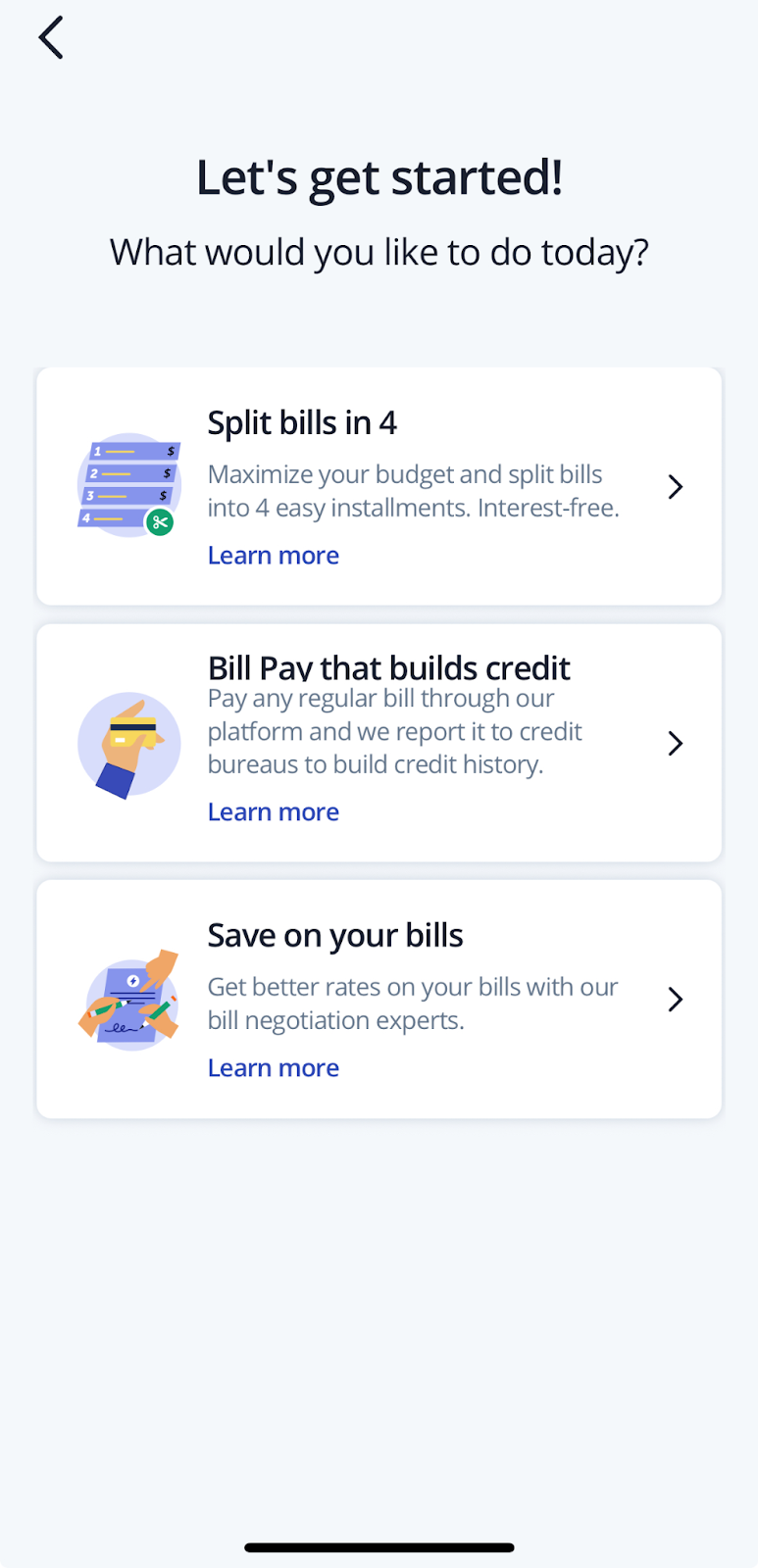
You can upload a bill from the website or the app — the steps are the same. After you tap Upload a bill, you’ll first choose how you want us to handle it: Split bills in 4, Bill Pay that builds credit, or Save on your bills (Bill Negotiation).
What you’ll need
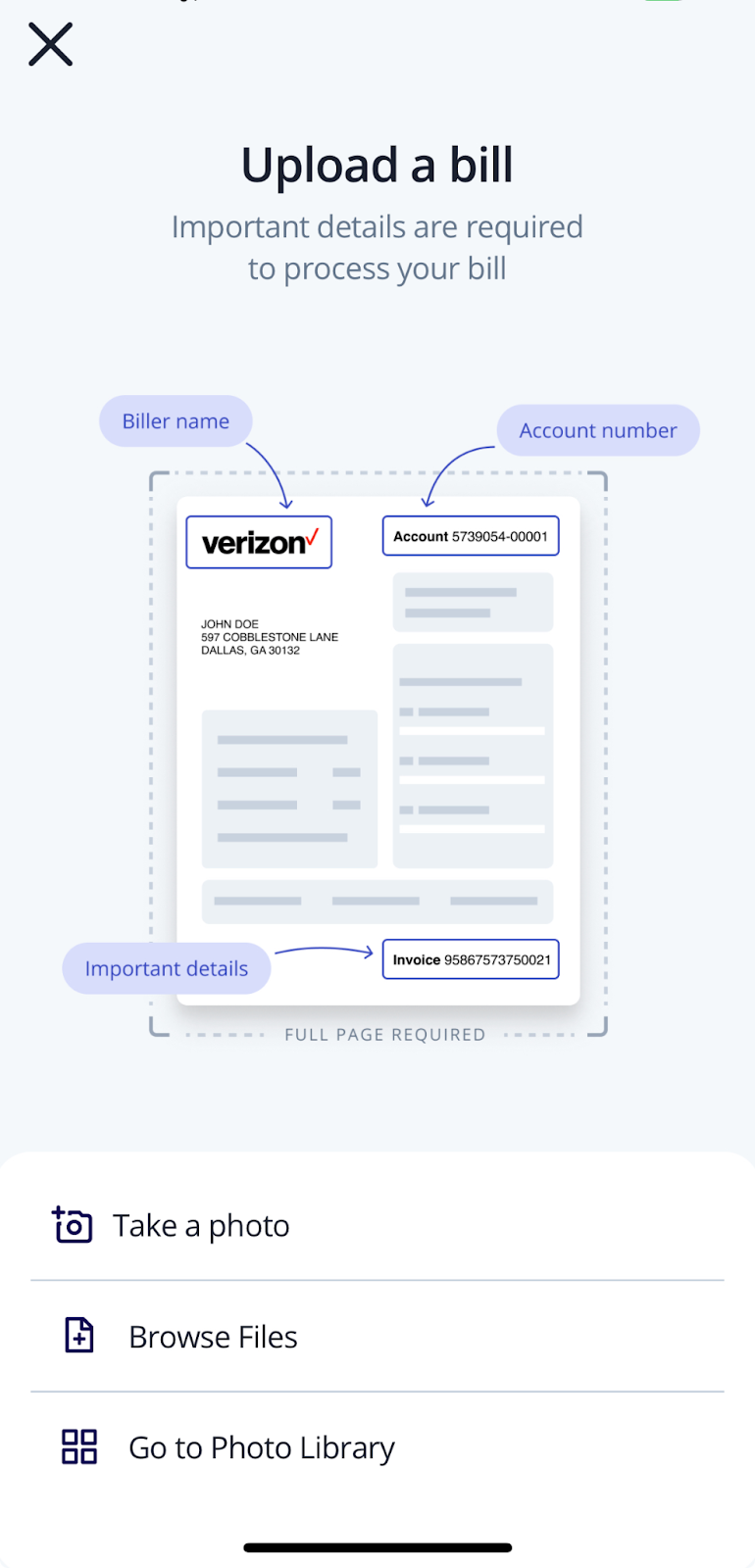
- Biller name
- Account or invoice number
- Amount due and due date
- Payment instructions (barcode, address, account ref)
- A clear PDF, JPG, or PNG of the full page
Upload steps (same on web & app)
Step 1 — Tap “Upload a bill” and choose a service
From the home screen, select Upload a bill, then choose one:
- Split bills in 4 (Pay in 4) — We pay your bill now; you repay in four interest‑free biweekly installments. Your first installment is charged the day we pay the bill. Some users may be asked for a refundable security deposit.
- Bill Pay that builds credit — Pay the full amount now with your card and we pay the biller (including mailed checks when needed). On‑time payments are reported to credit bureaus to help build credit.
- Save on your bills (Bill Negotiation) — Upload eligible service bills (e.g., internet, phone, cable) and our team will try to lower your rate.
Step 2 — Add your bill
Choose Take a photo, Browse Files, or Photo Library to upload your bill image or PDF. Ensure the full page is visible and readable.
Step 3 — Confirm details
Check that the biller, account number, amount due, and due date are correct. Add any special instructions if your biller requires them.
Step 4 — Review & submit
Tap Continue, review the summary for your chosen service, and Submit.
- For Pay in 4, we’ll show the installment plan and total before you confirm. Your first charge occurs the day we pay the bill.
- For Bill Pay, you’ll pay the full amount securely and we’ll handle the rest.
Tips for a smooth upload
- Capture/attach the entire bill page so key details aren’t cropped.
- Use bright lighting and avoid glare or shadows.
- If your bill total is higher than your Pay in 4 available balance, you may need to pay the difference upfront.